
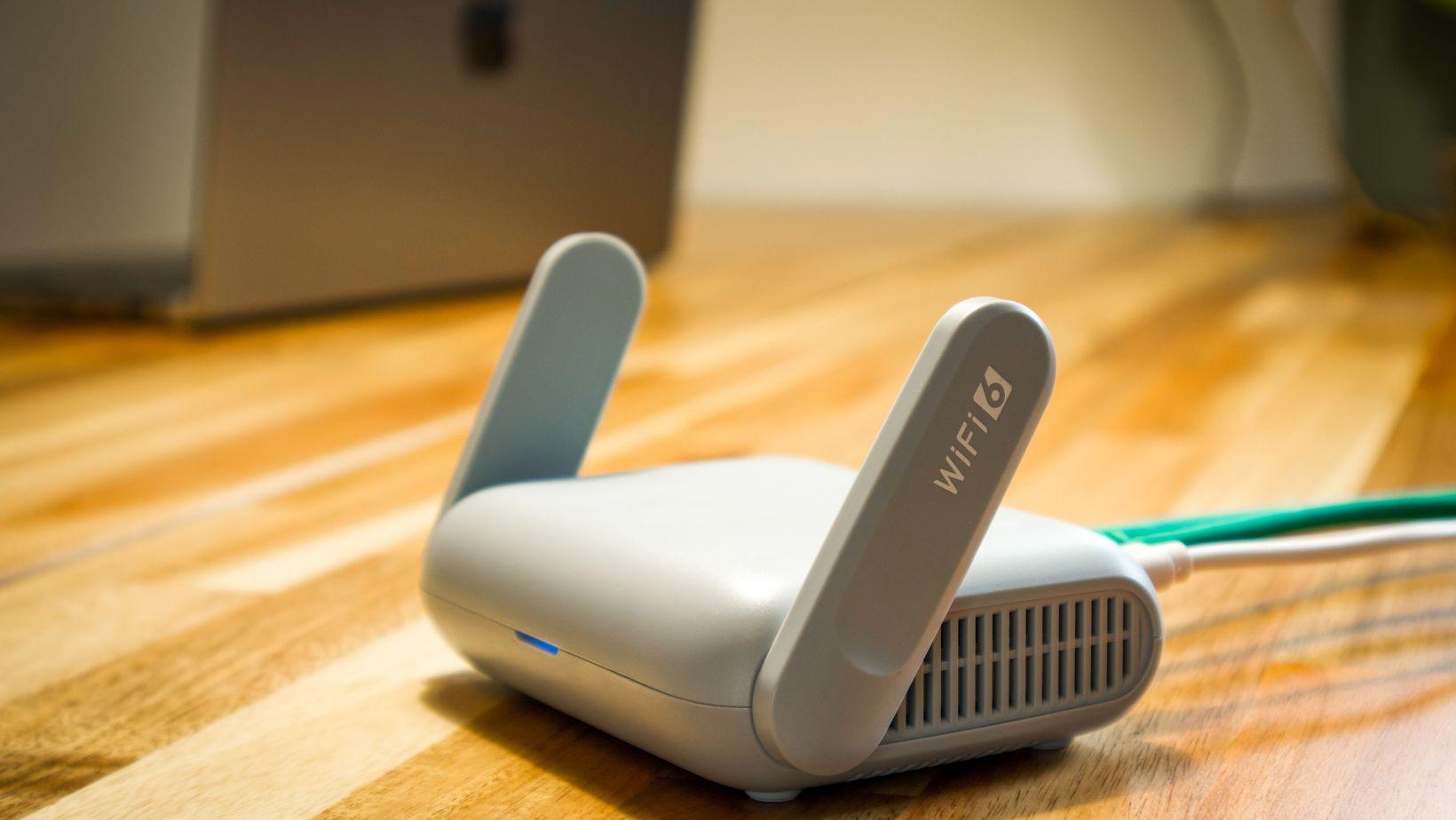
You sit down on the couch, open a video, and it freezes. Two rooms over, the same stream runs fine. Annoying? Sure. But before you order a shiny new router, stop for a minute. In many homes the router works perfectly well. The real trouble is where it stands and what the signal runs into on its way to your phone.
Why Dead Zones Appear in the First Place
Wi-Fi is radio, nothing more. It gets weaker with every meter and loses strength whenever it hits something solid. Under good conditions a standard router reaches about 150 feet indoors on the 2.4 GHz band, and noticeably less on 5 GHz.
Walls change the math significantly. As a rule of thumb, every 3 dB of signal loss cuts the signal power in half. A single brick wall can absorb 6 to 10 dB, meaning that after passing through just one layer, most of the signal is already gone. Concrete and metal are even more unforgiving.
You can easily test this yourself. Try opening FictionMe while you have a clear line of sight to your router and attempt to load one of your favorite books—then, move behind a wall. If the distance is short, it might still work, but as you move further away, the signal behind the wall will either disappear entirely or become intermittent.
Move the Router First
This one costs nothing. Lots of routers end up in a cabinet, behind the TV, or in the corner by the front door, simply because that is where the cable comes in. Bad spot. Put the device near the center of your home, in the open, and as high as is practical. A shelf beats the floor every time.
Also keep it away from microwave ovens, cordless phone bases and baby monitors. A microwave works at 2.45 GHz, right inside the 2.4 GHz Wi-Fi band. Heat your lunch, drop your video call.
Spot the Hidden Signal Killers
Some obstacles are obvious. Others sneak up on you. Water absorbs Wi-Fi, so a big aquarium between you and the router hurts. Mirrors, metal shelves, steel-framed doors and fridges bounce the signal around. Foil-backed insulation does it too. And a concrete floor between storeys can turn the upstairs into a dead zone all on its own.
Think in three dimensions. Router antennas spread signal sideways far better than up or down. If yours has two, try one upright and one tilted flat. Small tweaks, sometimes a big difference.
Map the Weak Spots
Guessing is a poor strategy. Walk through the house with your phone and a free Wi-Fi analyzer app, and note where the speed drops. As a rough guide, a signal around -67 dBm is the usual minimum for smooth video calls, and anything below -75 dBm gets painful.
Repeat the test in the evening. Neighbors’ networks and everyone streaming at once can make a room that looked fine at noon fall apart at 8 p.m. Write the results on a floor plan if you like. Paper still works.
Use the Two Bands Wisely
Most modern routers broadcast on two bands. The 2.4 GHz band travels farther but runs slower and gets crowded. The 5 GHz band is much faster, yet its signal fades quicker through walls. Neither is better. They are tools for different jobs.
Give each band its own network name if your router lets you. Then connect laptops and TVs near the router to 5 GHz and leave far-away gadgets, such as a garden camera or smart plug, on 2.4 GHz. If your router supports Wi-Fi 6E, the 6 GHz band is a quiet extra lane for nearby devices.
Pick a Less Crowded Channel
The channel situation is similar to the world of reading. Some read only what's required for school, others try to stand out by reading, but still read from Top 10 lists… Only a few are willing to install an iOS reading app and independently find a good book based on recommendations. The 2.4 GHz band has only three channels that do not overlap, usually 1, 6 and 11. In an apartment block, dozens of networks fight over them. Log into your router settings and pick the least busy one, or let auto mode choose, then check that it actually did.
The 5 GHz band offers many more channels, more than twenty in the US, so crowding is rarely the issue there. If your analyzer shows five networks sitting on your channel, switching is the cheapest speed boost you can get.
Update the Firmware and Check the Antennas
Router makers fix bugs and close security holes through firmware updates, and sometimes those updates improve range and stability too. Open the admin page, look for an update button, and use it. While you are there, restart the router. A reboot every few weeks clears out odd glitches.
Does your router have detachable antennas? Swapping them for higher-gain ones is cheap and takes two minutes. No removable antennas? Make sure they are screwed on tight and standing the way the manual suggests.
Range Extenders: Cheap, but There Is a Catch
Plug-in extenders are inexpensive and easy, which explains why they are everywhere. The catch is speed. A basic single-band unit receives and repeats on the same radio, and that can cut your throughput roughly in half.
Placement is where most people go wrong. They plug the extender into the dead zone itself. Wrong. Put it halfway between the router and the weak room, where the signal is still decent. A dual-band model that uses one band to talk to the router and another for your devices handles this much better.
Add Mesh Nodes to Your Current Router
You do not have to toss the old router to get mesh. Many kits can run in access point or bridge mode, which means your current router keeps doing its job while the new nodes spread the signal. Tri-band nodes use a dedicated channel to talk to each other, so speed holds up better than with a simple extender.
Go Wired When You Can
Nothing beats a cable. If you can run Ethernet to another room, plug in a second access point there and get strong, steady coverage. An old router works for this. Turn off its DHCP server, connect it LAN port to LAN port, give it the same network name and password, and you are done.
No way to drill through walls? Powerline adapters send data through your electrical wiring. Results vary with wiring quality, so treat the speed printed on the box as a best case, and never plug them into a power strip.
Trim the Load on Your Network
The average home now has more than 20 connected devices, according to several industry surveys. Phones, TVs, speakers, bulbs, cameras. They all chatter. Remove devices you no longer use, move heavy downloads to the night, and if your router has QoS settings, give video calls priority.
When a New Router Actually Makes Sense
Sometimes replacement is fair. A router that is eight or nine years old and supports only Wi-Fi 4 will limit everything you do. Still, work through the steps above first. Most homes get fixed without buying anything big. Start with the free stuff: position, channel, bands.